UX Writing Sample: Error Messages
Context:
The following is an example project demonstrating how I approach error states and error messaging. The project explores errors from the AI automation product Make (make.com).
My goal: To cause an error state, then identify all error messaging produced by this state, improve the copy, and improve the UX content design.
Part 1: Scenario setup & error creation
Make’s primary product is their AI scenario builder where customers link together modules (e.g., Excel, Slack, or an email client) to respond to situations automatically.
For example, the scenario builder can detect that you have entered data into a Google Sheet and automatically send a message to a team Slack channel with the appropriate information from that Sheet. Make’s tutorial explaining how to create your first scenario explains how to do exactly that.
The tutorial is thorough and covered all of my most basic questions. Setting up the initial scenario was easy.
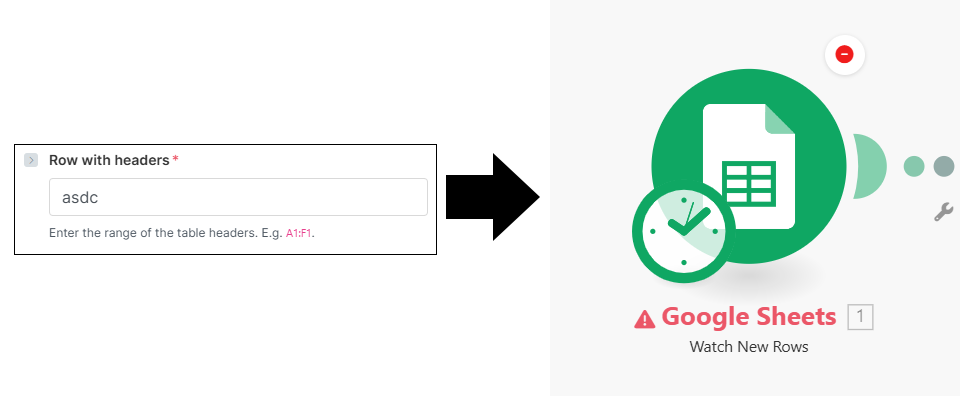
To create our error state, I inputted a nonsense value into one of the setup fields in the Google Sheets module, then activated the scenario.
Part 2: Error message audit & rewrites
The form field error above prevented the scenario from executing properly. In searching through the UI, I discovered four error messages resulting from this error state: a toast, a callout box found inside a modal attached to the offending module, an event entry in the log, and a side drawer in the scenario History feature.
A. Toast
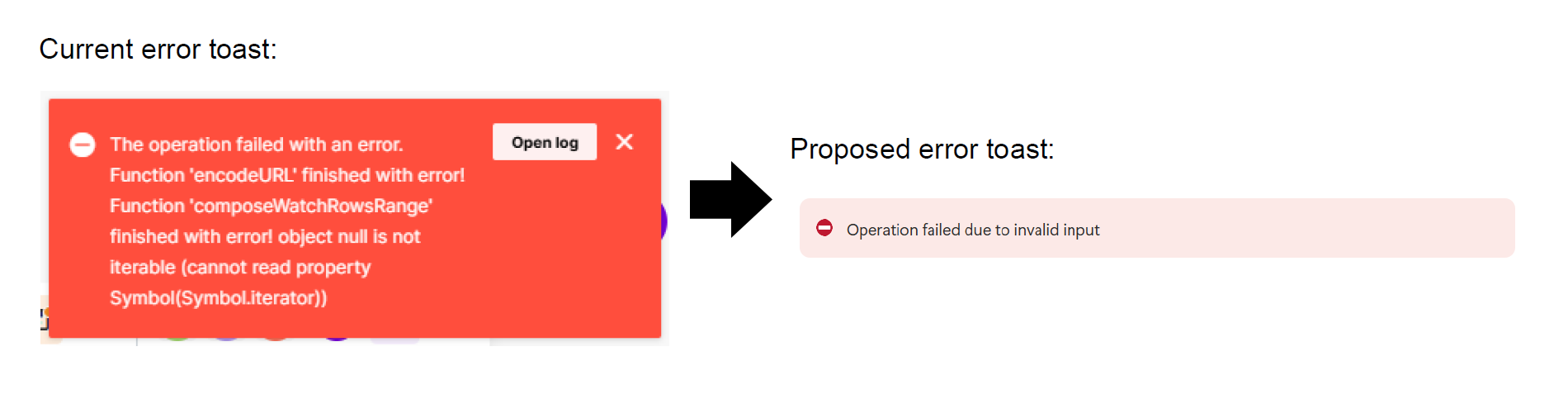
Thoughts: This error messages is presented as a standard toast, meaning it disappears after 3.5 seconds. This is not enough time to read the existing error or to understand that I may want to click the Open Log button. Toasts are only meant to give the user brief feedback on their actions. It’s not advised to have either a button and an X-to-dismiss for this reason.
If the designers want interaction in this design space, they could consider making it a persistent notification or snackbar. We already know that there are several other paths to notify the user and resolve the error, so I would leave it as a simple toast.
Recommendation: Simplify the error text to the basics of the event. Use as little text as possible. Remove the button and X-to-dismiss because the user can’t interact with them quickly enough anyway.
B. Callout Inside Modal
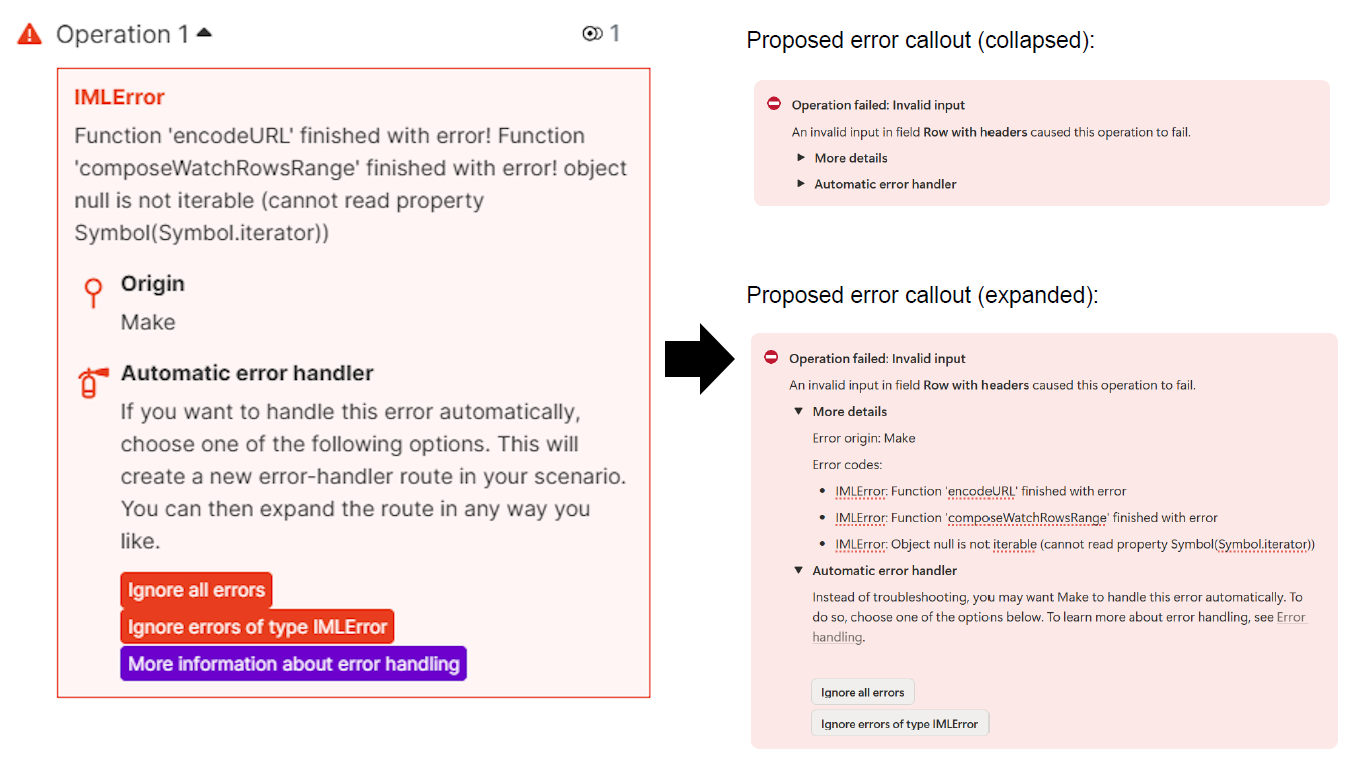
Thoughts: This error message is accessed in a modal by selecting the module where the error has occurred. The callout header of the error (“IMLError”) doesn’t tell the user anything. The language is overly technical and doesn’t reference anything from the UI, or anything that the user is likely to know already.
Half of the callout box is devoted to the “Automatic error handler”. How common is it for users to use the handler? Does it need to be so prominent? It distracts from the actual error.
In the error handler section, both of the "Ignore errors" buttons are red, indicating that they are destructive when they are not. The "More information" link is alongside the “Ignore” buttons when it should be separate because it’s not a 3rd alternative. “More information” link is blue indicating that it is positive action when it is not.
Recommendation: Use a header that is more clear and error copy that addresses what has caused the error. If possible, collapse the “Automatic error handler” so that it doesn’t dominate the callout. We do want to retain the overly technical “error coding” because it may help the user if they need to escalate with customer service.
With our sections are collapsed, we have error messaging that emphasizes what occurred and exactly where we can fix this error. If the user needs more information they can organically explore the collapsed sections with that information distracting from the error.
C. Log Event
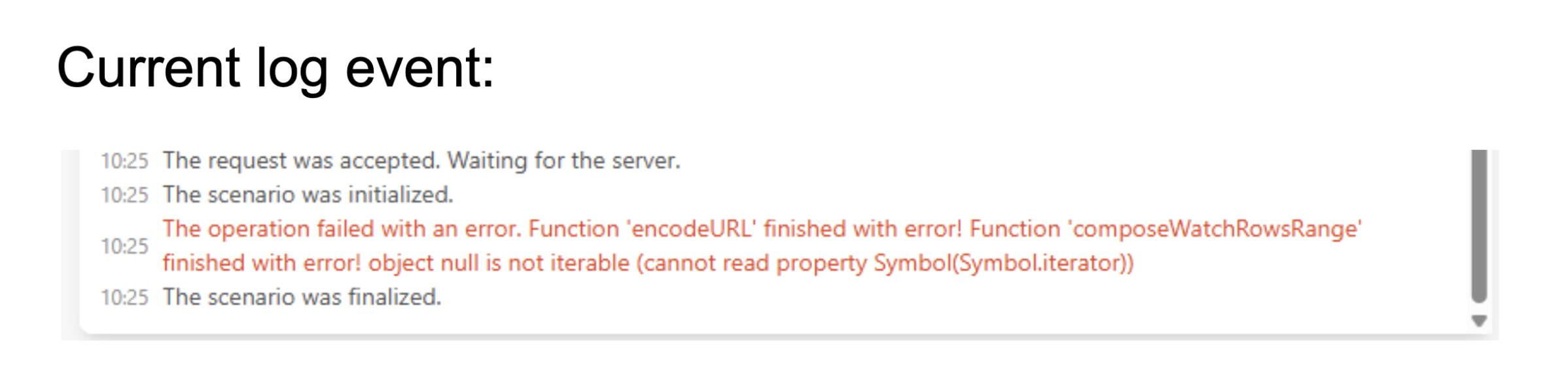
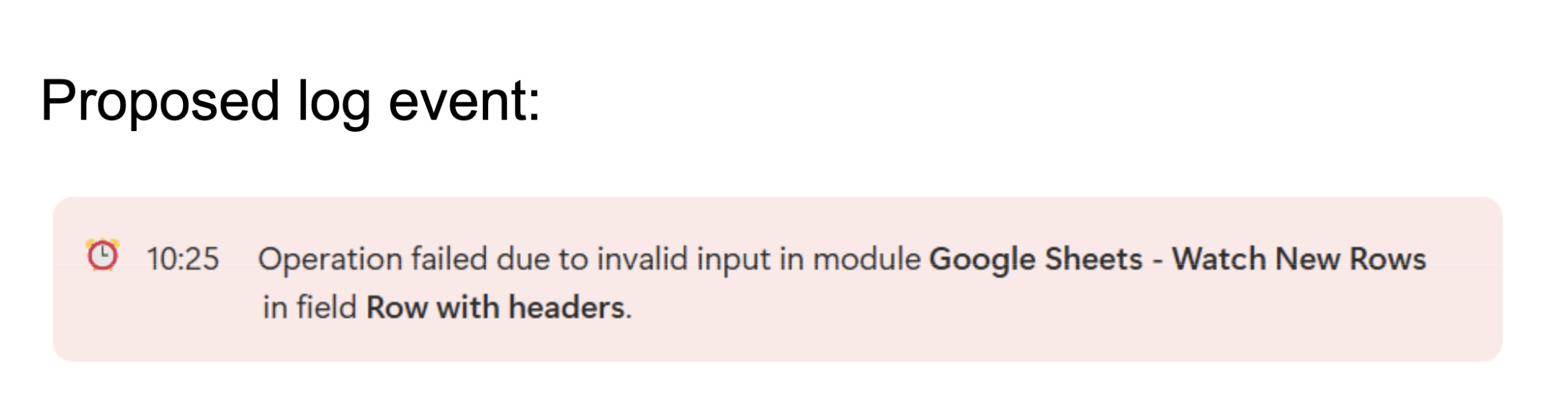
Thoughts: The function of the log is simply to track events, so the numerous error codes aren’t necessary here. We just need to see what the error is and where.
Recommendation: Use clearer error messaging as we did above, but include info about the module because the log does not exist that context. Remove the error codes because that information can be found in more appropriate places.
D. History Details
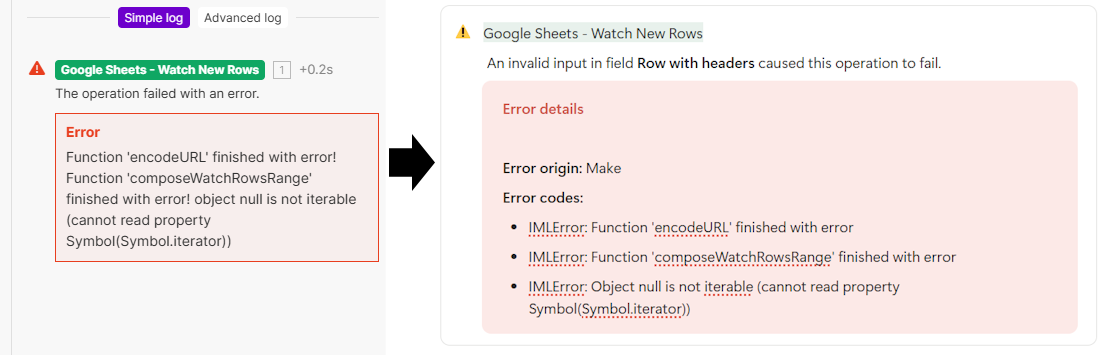
Thoughts: History > Details is a more detailed version of the event log and has space to detail all the error codes. It labels all errors with the offending module, meaning that it shows the error in context. This is the best place for users to resolve multiple errors at once, so we want to surface as much information as possible just as we did with the modal callout.
Recommendation: Use our clearer error messaging from above, indicating where the error occurs. We will also include origin and error codes for the user to escalate with. Formatting is only to copy the existing pattern.
Part 3: Proactive guidance
So far we’ve only optimized the error messaging. As an additional recommendation, how could we improve microcopy to prevent this error from occurring at all?
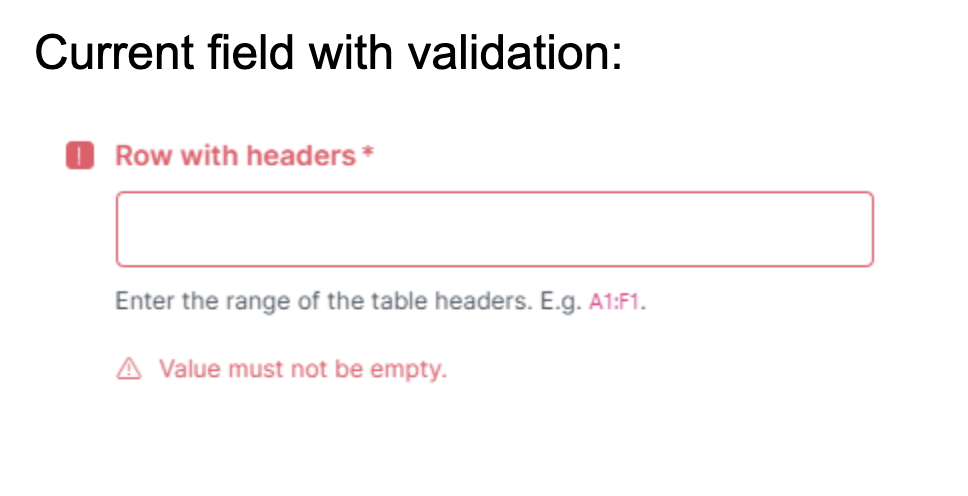
The existing microcopy is clear to me and I would be surprised if this is a common friction point for users while setting up. The field header clearly refers to the object in question and the help text clearly states what is expected, including an example.
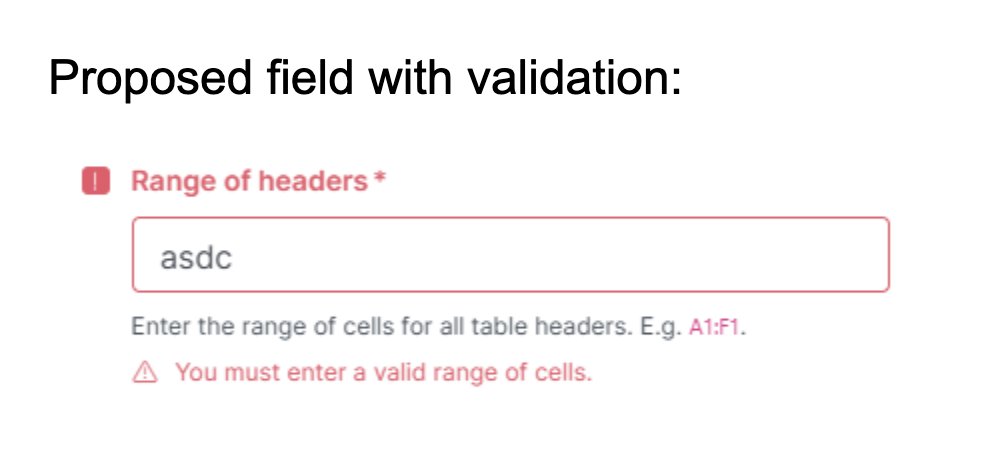
If I had to make minor improvements, I might rename the field to more directly reference what I expect in the input (“Range of headers” rather than the singular “Row with headers”) and clarify the help text (“Enter the range of cells for all table headers. E.g. A1:F1”). This is a slight improvement on the current version and not enough of an improvement that I would proactively request this change.
Recommend: A more useful change would be to improve the form validation on this field. It’s already set up to flag an empty input, so we can expand the validation to reject any input that isn’t a range of cells (E.g., reject “abcd” but accept “A1:Z1” etc.).
Part 4: Scenario variation
For our final example, let’s assume that the operation failed due to a deeper error occurring, something at the integration level.
For an API issue, what I would write depends on what data we’re receiving.
If there are API errors being passed to us from the integrated systems (e.g., the Slack integration is failing and we are receiving error messages from Slack), then it’s usually better to pass the errors directly on to the user. Even if this copy could be improved, the user will need that information to resolve the error, and it’s unsustainable to improve even a handful of errors from one integration, much less doing this at large with multiple integrations.
If there is no data being passed to us, it’s hard to know whether this is an outage (“system failure”) or some other potential issue. Either way, it’s best to be straight forward and write something like: “Operation failed: Google Sheets is currently unavailable.”